

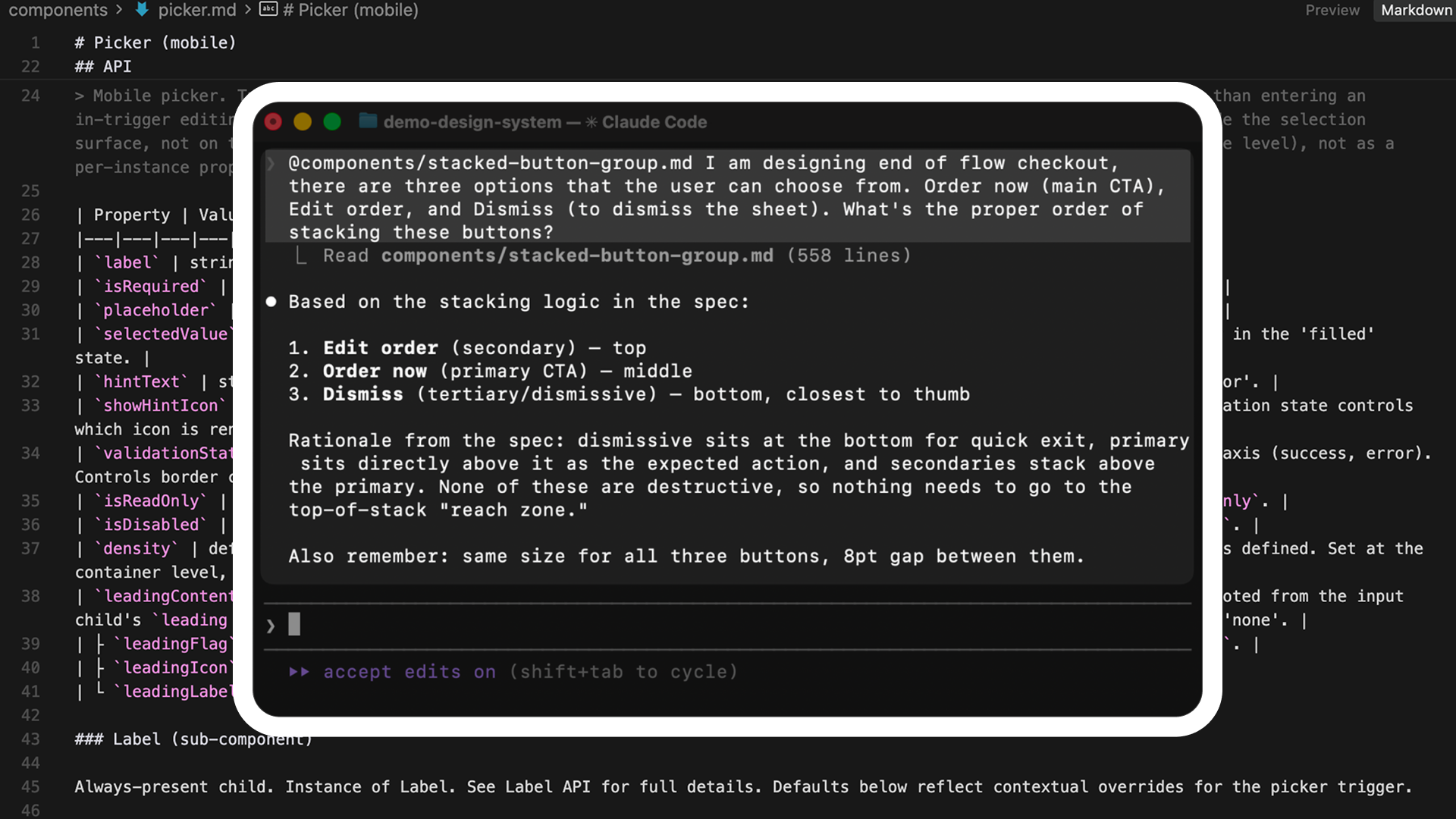
create-component-md produces a canonical JSON contract and a sibling Markdown implementation
guide for each component, covering API, structure, color, and screen-reader behavior. LLM tools and
automation can consume the JSON; humans can query the concise .md. The other uSpec skills render
sections of that specification back into Figma.
The
.md output works with any LLM workflow: Claude in Cursor, Claude Design, GPT agents, Gemini,
local models, and anything else that reads Markdown. Use the canonical .json when you need a
validated machine contract.What it generates
Each run writes two tracked artifacts:components/{componentSlug}.json— the canonical, schema-valid machine contractcomponents/{componentSlug}.md— the concise implementation guide rendered from that contract
--view audit to the renderer when you need an exhaustive
components/{componentSlug}.audit.md diagnostic companion.
The concise Markdown contains five sections:
A Provenance block records the source identity and evidence coverage so every claim is traceable
back to the extraction without exposing pipeline internals in the human-readable body.
What you need
This skill runs in two steps: extract, then generate. You need both pieces set up once.1
Install the uSpec Extract plugin
The plugin produces a
_base.json file that captures every variant, token binding, and sub-component in one pass. It is published on the Figma Community, so there is no local build.1
Open the Community plugin
Go to uSpec Extract on the Figma Community.
2
Install it
Click Open in… (or Try it out) to add it to your Figma. It then appears under Plugins → uSpec Extract in any file.
The public Community plugin requires the selected component’s Figma link because public
plugins cannot rely on the file key API. Paste it on the first run; the plugin remembers it
for later runs in the same document.
The plugin is open source. If you want to read or modify the source, it lives in
figma-plugin/; the troubleshooting guide covers building from source and common failure modes.2
Set up uSpec
You also need the
create-component-md skill. From your project root, run npx uspec-skills init and choose your agent host (Cursor, Claude Code, or Codex). The CLI installs every skill — including create-component-md — into the platform-specific directory. If you have not set up your agent host yet, follow Getting Started. Generating the .md does not require Figma MCP setup or firstrun — those are only needed for the create-* skills that render the .md back into Figma.How to use
1
Extract the component
In Figma:
- Select a single
COMPONENTorCOMPONENT_SET. Selecting a variant auto-promotes to its component set. - Run Plugins → uSpec Extract (or Plugins → Development → uSpec Extract if you dev-installed).
- Paste the selected component’s Figma link into the footer.
- Review the sub-component checklist. The plugin pre-guesses whether each child is constitutive (owned by this component) or referenced (an instance of a widely-reused component). Flip any guess you disagree with.
- Optionally paste design intent, open questions, or constraints into the text area.
- Click Extract & download to save
{componentSlug}-_base.jsonto~/Downloads/, or Copy JSON to put the full payload on your clipboard.
2
Run the skill
In your agent host, point the skill at the downloaded file:The agent validates the extraction, runs four interpretation passes, reconciles their outputs,
compiles the canonical contract, and writes
- Cursor
- Claude Code
- Codex
./components/{componentSlug}.json plus
./components/{componentSlug}.md.When the run finishes, sibling
.json and .md files appear under ./components/ (for example,
components/text-field.json and components/text-field.md). Open the Markdown to verify the five
sections, then keep both files together in version control.Optional: pair with a Figma link
If you pass a Figma URL alongside the JSON, the agent can run a targeted measurement delta when a sub-skill flags a gap:How it works
The pipeline separates measured evidence, AI interpretation, and deterministic compilation. This keeps semantic judgment where it is useful while making validation and final rendering repeatable. Deterministic evidence Parallel interpretation Validated contract1
Prepare deterministic evidence
component-md prepare validates _base.json, stages it under
.uspec-cache/{componentSlug}/, and writes a manifest plus API, Structure, Color, Voice, and
renderer evidence slices. Each slice includes obligations that identify facts the specialist
must account for.2
Interpret the component
extract-api builds the shared property dictionary first. Structure, Color, and Voice then run
in parallel against their compact evidence slices and the same vocabulary.3
Validate and reconcile
component-md validate checks each specialist cache, its obligation ledger, source identity,
semantic row support, and output targets. The orchestrator then compares the domains for typed
disagreements and can retry only the specialist that owns a mismatch.4
Compile the canonical contract
The parent writes a small semantic render plan containing the overview and confidence summary.
component-md contract combines that plan with validated caches into
components/{componentSlug}.json.5
Render the human view
component-md render mechanically produces the concise implementation guide from the contract
and runs acceptance gates over every domain. Use --view audit when you need exhaustive
evidence, provenance, and target diagnostics.Using the output with LLMs
The generated.md is self-contained for human and LLM implementation work. Hand it to any LLM
as context and ask it to:
- Implement the component in React, SwiftUI, Jetpack Compose, or your platform of choice.
- Generate unit tests that cover every documented state and variant.
- Write platform-specific accessibility code from the Voice section tables.
- Build a Storybook file with one story per variant axis value.
- Create a design-review checklist from the Known gaps block.
What the plugin captures
The extractor walks every variant and resolves every binding, which is what makes the.md pixel-perfect:
- Every variant. No default-variant sampling. Cross-variant diffs and axis classification are computed inside the plugin sandbox.
- Variant-complete composition. Child instances carry exact per-variant presence and placement metadata, including children that only exist outside the default variant.
- Distinct revealed topologies. Every structural topology gets a populated revealed-tree representative, so state- or variant-specific anatomy remains available downstream.
- Library-linked variables with name,
codeSyntax, alias chains, and remote collection metadata. - Inline font properties alongside text style IDs, so typography survives when a library style cannot be resolved.
- Sub-components walked across their own variant axes. A Button inside a Text Field is measured across its own size and density variants, not only the configuration the parent embeds.
- Designer-in-the-loop classification. You confirm or flip whether each top-level child is constitutive, referenced, or decorative before extraction runs.
_base.json contract.
Tips for better output
- Use Opus 4.7 High or better. Lower-capacity models may truncate mid-reconciliation and leave one of the four sections incomplete.
- Start a fresh agent session for every run. Accumulated history reduces available context. This skill uses parallel subagents and works best with a clean session.
- Review the plugin’s sub-component checklist carefully. The downstream spec inherits your classifications. Getting constitutive vs referenced right saves reconciliation cycles.
- Add design intent in the plugin’s text area when a component has behavior that is not visible in the static design: focus-order intent, conditional states, or platform-specific variants.
- Run the plugin on the component set, not a single variant. The plugin auto-promotes selected variants to their set, but starting from the set makes the axes explicit.
- Diff the
.mdbetween runs. After a design change, re-extract and re-generate. The resulting diff is a clean record of what changed semantically, not just pixel-wise.
Troubleshooting
The accordions below cover issues with the generated.md itself. For plugin install or runtime issues — Figma can’t find the plugin, the canvas selection is rejected, the export produces no file — see the Figma Extract plugin troubleshooting tab.
Validation error: _base.json does not match schema
Validation error: _base.json does not match schema
The plugin output failed Ajv schema validation during the CLI prepare stage.Contributors running from source can also use:
- Confirm the plugin version matches the skill version. If you updated one without the other, the schema can drift.
- Re-run the plugin and try again.
- Run the prepare command directly to see the full diagnostic:
The generated .md has — in structure cells
The generated .md has — in structure cells
The structure section renders
— when the plugin could not measure a sub-component variant.- Confirm the sub-component checklist in the plugin marks the missing child as constitutive. Referenced children intentionally skip deep measurement.
- If the sub-component has more than 20 variant combinations, the extractor caps the walk and emits a
skippedmarker. For very large sub-components, document them in their owncreate-component-mdrun and reference the resulting file.
One section (e.g., Voice) is noticeably shorter than the others
One section (e.g., Voice) is noticeably shorter than the others
A specialist may have hit a reconciliation budget limit.
- Check the Known gaps block at the top of the
.md. Unresolved reconciliation items are listed there. - Re-run on a higher-capacity model, or re-run with
reconciliation.autoRetryset totrueinuspecs.config.json.
Token cost is higher than 200k
Token cost is higher than 200k
Very complex components (many variants, many sub-components, or large property matrices) can exceed the typical range.
- Break the component into smaller units and spec them separately.
- For compound components, spec the parent and reference the children rather than re-specifying each child inline.
Related
Getting Started
Install your agent host (Cursor, Claude Code, or Codex). Generating the
.md skips MCP and template library setup.How It Works
See the uSpec pipeline and where this skill fits as the source of truth.
Plugin troubleshooting
Install and recovery instructions for the uSpec Extract plugin.
Screen reader spec
Render VoiceOver, TalkBack, and ARIA tables directly into Figma.